> For the complete documentation index, see [llms.txt](https://kakaobusiness.gitbook.io/main/llms.txt). Markdown versions of documentation pages are available by appending `.md` to page URLs; this page is available as [Markdown](https://kakaobusiness.gitbook.io/main/ad/moment/guarantee/cpt/content-guide.md).

# 제작 가이드

{% hint style="info" %}
카카오 비즈보드 CPT에는 카카오 비즈보드 성과형 제작가이드가 공통으로 적용되며, 일부 요소에 대해 완화된 기준으로 소재를 제작할 수 있습니다.

* 카카오 비즈보드 성과형 제작가이드 [►바로가기](https://kakaobusiness.gitbook.io/main/ad/moment/performance/talkboard/content-guide)
  {% endhint %}

{% hint style="warning" %}
영업일 기준 집행 1일 전까지 최소 1개 이상의 소재가 심사 승인 완료되도록 준비해 주셔야 합니다. \
소재 미등록, 집행일에 임박한 소재 등록(ex. 집행 전일 또는 집행 당일 소재 등록), 집행 중 소재 교체 등으로 인해 발생한 미노출에 대해서는 카카오에서 책임지지 않습니다. \
심사 일정을 고려하여 집행일 최소 2\~3일 전(영업일 기준) 소재를 등록하시기 바랍니다.
{% endhint %}

카카오 비즈보드 CPT에 한해 별도로 완화된 제작가이드는 다음과 같습니다.&#x20;

## 1. 오브젝트형・썸네일 박스형 사이즈 확장

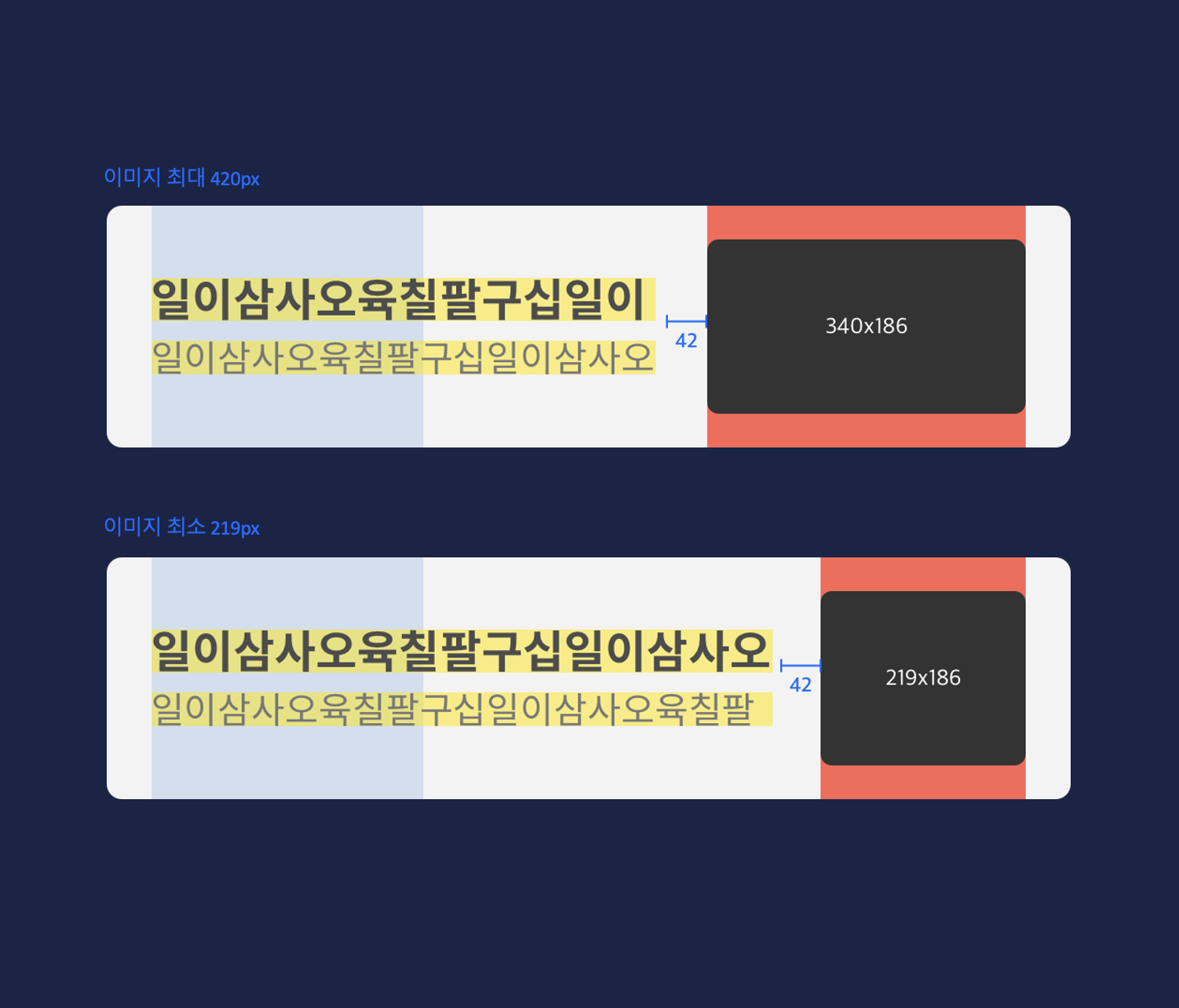
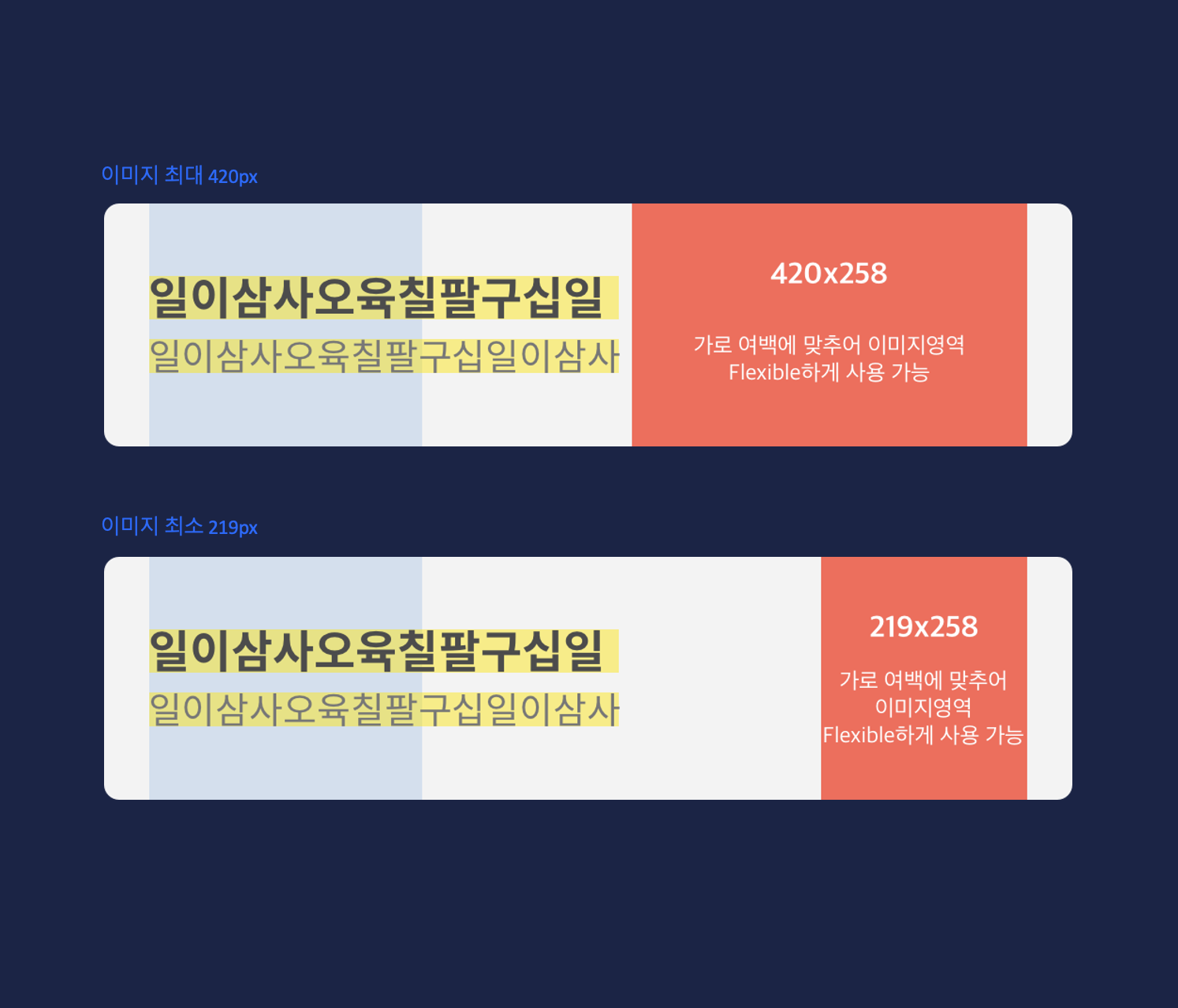
카카오 비즈보드 CPT 오브젝트형에서는 이미지 가로 사이즈를 **420px**까지, 썸네일 박스형에서는 **340px**까지 적용 가능합니다.

{% tabs %}
{% tab title="오브젝트형" %}

<div align="center"><figure><img src="https://t1.daumcdn.net/biz/DM/230221_%EA%B9%83%EB%B6%81%20%EC%9D%B4%EB%AF%B8%EC%A7%80_5.png" alt=""><figcaption></figcaption></figure></div>

<table data-header-hidden><thead><tr><th width="127"></th><th></th></tr></thead><tbody><tr><td>구분</td><td>상세 안내</td></tr><tr><td>오브젝트</td><td><p><strong>•  이미지 최대 너비 : 420px</strong> </p><p>•  이미지 최소 너비 : 219px</p><p>•  이미지포맷 : 투명PNG </p><p>•  이미지용량 : 150KB 이하</p><p>•  텍스트와 이미지 사이간격 42px 유지</p><p>•  이미지는 배경 없는 오브젝트 형태로 가공</p><p>•  카피와의 균형감에 따라 이미지 영역 내에서 정렬 조정 가능</p><p>•  좌,우측이 크롭되지 않는 온전한 형태로 필수 적용 </p><p>•  임의의 텍스트 삽입 불가</p></td></tr><tr><td>광고주체 표기</td><td><p>•  오브젝트 영역에 광고주체를 표기할 경우 가독성 있는 사이즈로 제작 필수</p><p>•  광고주체 표기 1개 권장</p></td></tr></tbody></table>
{% endtab %}

{% tab title="썸네일 박스형" %}

<figure><img src="https://t1.daumcdn.net/biz/DM/230221_%EA%B9%83%EB%B6%81%20%EC%9D%B4%EB%AF%B8%EC%A7%80_6.png" alt=""><figcaption></figcaption></figure>

<table data-header-hidden><thead><tr><th width="235"></th><th></th></tr></thead><tbody><tr><td>구분</td><td>상세 안내</td></tr><tr><td>썸네일 박스형</td><td><p><strong>•   영역 최대 너비 : 340px</strong></p><p>•   영역 최소 너비 : 219px</p><p>•   높이 186px 고정</p><p>•   이미지 포맷 : JPG, JPEG, PNG (투명배경 이미지 사용 불가)</p><p>•   이미지 용량 : 10MB 이하</p><p>•   텍스트와 이미지 사이 간격 42px 유지</p><p>•   이미지는 단일 이미지로 구성하는 것을 권장(분할 이미지는 서로 다른 이미지를 이용하여 최대 두 개까지 사용 가능)</p><p>•   비즈보드 회색 배경과 유사한 컬러 (#f3f3f3) 사용 불가</p></td></tr><tr><td>광고주체 표기</td><td>•   메인카피/서브카피 내 텍스트로 기재</td></tr></tbody></table>

#### **※   썸네일 박스형** Good case / Bad Case

<figure><img src="/files/uAX1tz1wlb1QpHo50Ayi" alt=""><figcaption></figcaption></figure>
{% endtab %}
{% endtabs %}

&#x20;                                                 &#x20;

## 2. 다양해진 텍스트 효과

다양한 텍스트 구성 및 강조 효과를 활용해, 브랜드를 효과적으로 알리고 소재 주목도를 더욱 더 높일 수 있습니다.

### 2-1. 고딕 계열 폰트 허용

{% tabs %}
{% tab title="폰트 가이드" %}

<figure><img src="/files/pzPTUPjWn9vmyz2luMqC" alt=""><figcaption></figcaption></figure>

<table data-header-hidden><thead><tr><th width="196"></th><th></th></tr></thead><tbody><tr><td>구분</td><td>상세 안내</td></tr><tr><td>폰트 가이드</td><td><p><strong>•</strong>   권장 폰트인 Spoqa han sans(스포카 한 산스) 외 고딕계열(브랜드 폰트 포함)의 타 폰트 사용 가능 </p><p>•   <strong>브랜드 폰트 및 Bold 효과는 메인카피에만 사용 가능</strong></p><p>•   <strong>브랜드 폰트 사용한 1줄은 브랜드 폰트 외 다른 폰트 사용 불가</strong></p><p>•  가독성이 좋지 않은 폰트 사용 불가 및 폰트의 자간 임의 조정 불가 </p></td></tr></tbody></table>

※ 심사 과정에서 브랜드 폰트 확인 및 대조를 위한 별도 증빙을 요청할 수 있습니다.
{% endtab %}
{% endtabs %}

### 2-2. 텍스트 영역 확장

{% tabs %}
{% tab title="텍스트 한 줄" %}

<figure><img src="/files/WObSVQiKcjMrBl1wGWbe" alt=""><figcaption></figcaption></figure>

<table data-header-hidden><thead><tr><th width="201"></th><th></th></tr></thead><tbody><tr><td>구분</td><td>상세 안내</td></tr><tr><td>텍스트 한 줄</td><td><p><strong>•</strong>    텍스트 최소 가로 길이는 290px 고정</p><p><strong>•</strong>    메인카피 높이 36px ~ 51px</p></td></tr></tbody></table>
{% endtab %}

{% tab title="텍스트 두 줄(기본형)" %}

<figure><img src="/files/5zJXbONeQ8yhvLgqmUyB" alt=""><figcaption></figcaption></figure>

<table data-header-hidden><thead><tr><th width="193"></th><th></th></tr></thead><tbody><tr><td>구분</td><td>상세 안내</td></tr><tr><td>텍스트 두 줄</td><td><p><strong>•</strong>    텍스트 최소 가로 길이는 290px 고정 </p><p><strong>•</strong>    메인카피 높이 36px ~ 51px / 서브카피 높이 30px ~ 45px</p><p><strong>•</strong>    2줄 간 간격 최소 24px 이상으로 제작(영역 내에서 가능)</p></td></tr></tbody></table>
{% endtab %}

{% tab title="텍스트 세 줄" %}

<figure><img src="/files/DhLWPzzpOhjSZDbh8mny" alt=""><figcaption></figcaption></figure>

<table data-header-hidden><thead><tr><th width="191"></th><th></th></tr></thead><tbody><tr><td>구분</td><td>상세 안내</td></tr><tr><td>텍스트 세 줄</td><td><p><strong>•</strong>    텍스트 최소 가로 길이는 290px 고정</p><p><strong>•</strong>    부가 정보 입력 시 카피 3줄 최대 높이 152px 내에서 구성</p><p><strong>•</strong>    세 번째 줄: 높이 18px 고정 / #999999 색상 필수 / 광고 문구와 줄 간격 최소 24px / 좌우측의 하단에만 배치 가능</p></td></tr></tbody></table>
{% endtab %}
{% endtabs %}

### 2-3. 텍스트 꾸밈효과&#x20;

{% tabs %}
{% tab title="꾸밈효과 가이드" %}

<figure><img src="/files/jtyB64KLRIwbcjKz3Gq4" alt=""><figcaption></figcaption></figure>

<table data-header-hidden><thead><tr><th width="173"></th><th></th></tr></thead><tbody><tr><td>구분</td><td>상세 안내</td></tr><tr><td>꾸밈효과 가이드</td><td><p><strong>•    풀 컬러형: 컬러 7종, 텍스트 높이와 동일한 형태로 사용</strong></p><p><strong>•    하프 컬러형: 컬러 7종, 지정된 높이 15px로 사용</strong></p><p><strong>•</strong>    어절로 구분하여 하이라이트 사용</p><p><strong>•</strong>    최소 1개 ~ 최대 3개 어절에 하이라이트 사용</p><p><strong>•    메인 카피에만 사용</strong></p><p><strong>•</strong>    문구 전체에 하이라이트 사용 불가</p><p><strong>•</strong>    하이라이트 끊어서 조합 불가</p><p><strong>•</strong>    1개 어절에 하이라이트 표기할 경우 한 글자로 구성된 어절은 사용 불가</p><p><strong>•</strong>    어절 내에서 일부만 표기 불가</p><p><strong>•</strong>    쌍으로 구성되는 특수기호의 경우 하이라이트 어절에 기호가 모두 포함되지 않을 경우 하이라이트 표기 불가</p><p><strong>•</strong>    하이라이트 효과 중복 사용 불가</p></td></tr></tbody></table>

**※   사용 가능한 하이라이트 컬러 7종**

<figure><img src="/files/TWFvguTjt2pOQyHS1HGl" alt=""><figcaption></figcaption></figure>

####

#### **※**   Good case / Bad Case

<figure><img src="/files/SFpCAG1ONvK4bqcVYZ3A" alt=""><figcaption></figcaption></figure>
{% endtab %}
{% endtabs %}

### 2-4. 텍스트 컬러효과&#x20;

{% tabs %}
{% tab title="컬러효과 가이드" %}

<figure><img src="/files/U4qQtSuF9zG1m243Jmf9" alt=""><figcaption></figcaption></figure>

<table data-header-hidden><thead><tr><th width="178"></th><th></th></tr></thead><tbody><tr><td>구분</td><td>상세 안내</td></tr><tr><td>컬러효과 가이드</td><td><p><strong>•</strong>    한 줄 기준 문장의 50% 또는 어절의 50% 이내에서 사용</p><p><strong>•</strong>    컬러가 들어간 부분 이외의 텍스트는 #4C4C4C 사용하여 제작</p><p><strong>•    가독성이 떨어지는 밝은 컬러 사용 불가</strong></p><p><strong>•    강한 형광색 컬러 사용 불가</strong></p><p><strong>•</strong>    컬러 선택 TIP 참고하여 파란색 영역의 컬러 사용을 권장</p></td></tr></tbody></table>

**※   컬러 선택 TIP**&#x20;

<figure><img src="/files/hMPRe9fRvHELphikBxl9" alt=""><figcaption></figcaption></figure>

**※   사용 불가 컬러**

<figure><img src="/files/MpMxphiEMsw2dXbuNCxx" alt=""><figcaption></figcaption></figure>
{% endtab %}
{% endtabs %}

{% hint style="info" %}
카카오 비즈보드 CPT에서도 프리미엄 확장 형태인 익스팬더블 집행이 가능합니다. 자세한 사항은 아래 내용을 참고해주세요.&#x20;

•  익스팬더블 유형 안내 [▶︎바로가기](https://kakaobusiness.gitbook.io/main/ad/moment/performance/talkboard/content/expandable)

•  익스팬더블 제작가이드 [▶︎바로가기](https://kakaobusiness.gitbook.io/main/ad/moment/performance/talkboard/content/expandable)
{% endhint %}

{% hint style="warning" %}
카카오모먼트 배너 제작툴에서는 카카오 비즈보드(*CPC, CPM, CPA*) 제작가이드 기준의 소재 제작만 가능합니다. 카카오 비즈보드 CPT의 완화된 가이드로 소재 제작을 원하시는 경우에는 별도 PSD 파일을 활용해주세요. [►다운로드](https://t1.daumcdn.net/biz/심사_2024/kakaobizboard_template_CPT.zip)
{% endhint %}

{% hint style="success" %}
**카카오 비즈보드 CPT(모션 비즈보드는 제외)의 오브젝트 위치 및 크기, 카피 위치 및 정렬, 혜택강조 효과, CTA 버튼 등에 대해 보다 자유로운 소재 제작**이 필요한 경우 별도로 완화된 PSD 제작 가이드를 활용할 수 있습니다. [►다운로드](https://kko.kakao.com/5RP5drlriI)
{% endhint %}

{% hint style="info" %}
다른 문의사항이 있으실까요? 카카오톡 채널 혹은 고객센터를 통해 문의하실 수 있습니다.
{% endhint %}

{% tabs %}
{% tab title="채널 문의" %}
[카카오비즈니스 채널](https://pf.kakao.com/_WekxcC)을 추가하시면 카카오톡으로 채팅 상담을 시작하실 수 있습니다. \
모바일에서 편리하게 묻고 빠르게 답변을 받아보세요.

* 카카오톡 채널 상담 운영 시간 : 평일 오전 9시 \~ 오후 6시 (주말 및 공휴일 제외)
  {% endtab %}

{% tab title="고객센터 문의" %}
카카오 고객센터에서 문의사항을 남겨주시면, 이메일로 답변해드립니다.&#x20;

* [카카오모먼트 관리자센터 문의하기 ](https://cs.kakao.com/requests?service=110\&locale=ko)
  {% endtab %}

{% tab title="카카오 비즈니스 라운지" %}
카카오모먼트를 사용하면서 궁금한 점이 생기거나 광고 운영에 도움을 받고 싶을 때,\
[카카오 비즈니스 라운지](https://lounge-board.kakao.com/post/list?serviceType=KAKAOMOMENT)에 문의하시면 Kakao 담당자가 확인하여 답변을 드립니다.

* 카카오모먼트 우측 상단의 ‘문의게시판’을 클릭하여 접속해주세요.
* 광고계정, 캠페인, 광고그룹, 소재를 선택하여 더욱 빠르고 정확하게 문의할 수 있습니다.
  {% endtab %}

{% tab title="원격지원 상담" %}
비즈니스 가이드와 톡 상담만으로 카카오모먼트 이용이 어려우신가요? \
원격 지원 상담 서비스로 상담원이 서비스 이용을 도와드리겠습니다.

\
[카카오비즈니스 채널 > 상담직원 연결](https://bizmessage.kakao.com/chat/open/@카카오비즈니스) 후 원격지원 상담을 요청하시면 원격 지원 상담 서비스를 시작하실 수 있습니다.

* 카카오톡 채널 상담 운영 시간 : 평일 오전 9시 \~ 오후 6시 (주말 및 공휴일 제외)
  {% endtab %}
  {% endtabs %}


---

# Agent Instructions
This documentation is published with GitBook. GitBook is the documentation platform designed so that both humans and AI agents can read, navigate, and reason over technical content effectively. Learn more at gitbook.com.

## Querying This Documentation
If you need additional information that is not directly available in this page, you can query the documentation dynamically by asking a question.

Perform an HTTP GET request on the current page URL with the `ask` query parameter, and the optional `goal` query parameter:

```
GET https://kakaobusiness.gitbook.io/main/ad/moment/guarantee/cpt/content-guide.md?ask=<question>&goal=<endgoal>
```

`ask` is the immediate question: it should be specific, self-contained, and written in natural language.
`goal` is optional and describes the broader end goal you are ultimately trying to accomplish on behalf of the user. GitBook uses it to tailor the answer towards what is most useful for that goal.

The response will contain a direct answer to the question and relevant excerpts and sources from the documentation.

Use this mechanism when the answer is not explicitly present in the current page, you need clarification or additional context, or you want to retrieve related documentation sections.